
Guide
The reader
Five reading modes, page turns that curl like paper, open-book spreads, and the settings that tune them.
Reading modes#
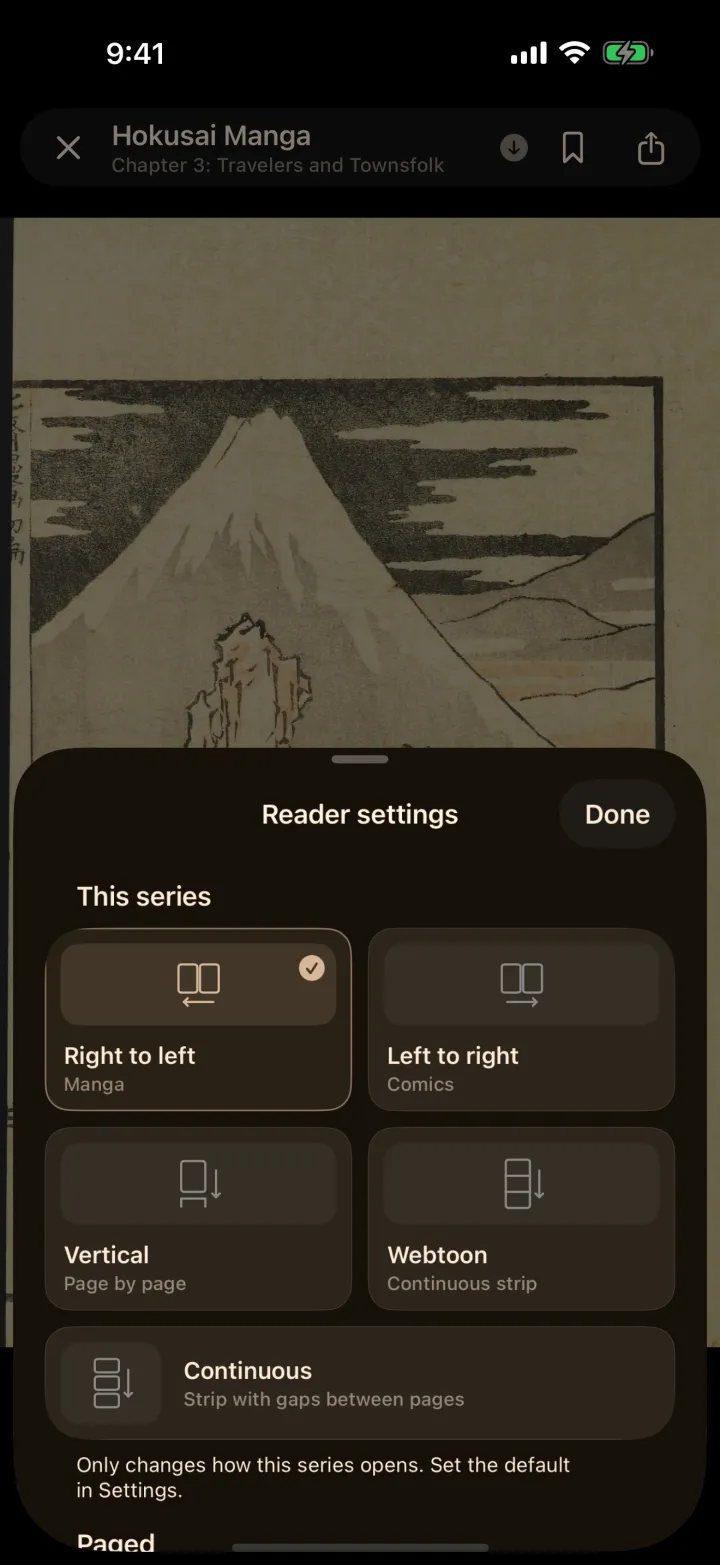
| Mode | For | Notes |
|---|---|---|
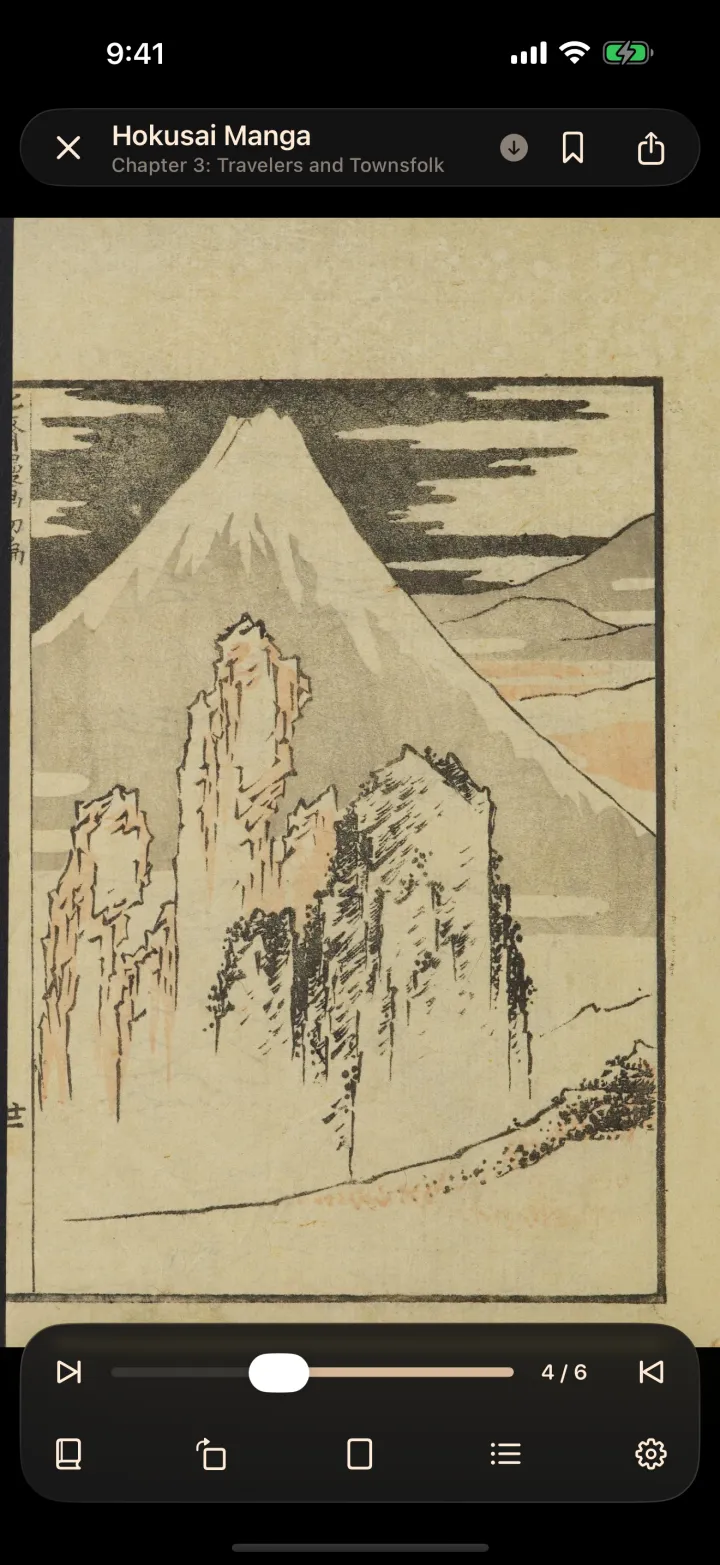
| Right to left | Manga | Swipe or tap from the right, the way it was published. |
| Left to right | Comics | The mirror image. |
| Vertical | Page by page | Pages turn up and down. |
| Webtoon | Long strips | One continuous strip. |
| Continuous | Strips with gaps | A strip with space between pages. |
Open the reader's settings from the reader's own menu. The mode you choose is remembered for that series, and you can set a default for everything else in More → Reader. Long strips open in webtoon mode by themselves, and a switch in the reader settings turns that off if you would rather not.
Page turns#
In the paged modes a page curls as it turns, like paper. If you prefer a plain slide, switch the page transition in the reader's settings. Swipes always follow your finger; the setting also covers taps and keys.
Open-book spreads#
On iPad, and on iPhone in landscape, two pages sit side by side as an open book. The cover stays alone, wide pages stay whole, and Shift pages by one realigns the spreads if a book starts on the wrong side.
Fit, zoom and tap zones#
- Scaling: fit the screen, the width or the height, or show the original size.
- Double-tap to zoom can be turned off if you want single taps to respond instantly.
- Webtoon spacing: add 0, 5, 10, 15 or 20 percent of empty space on each side of a strip.
- Fullscreen hides the status bar while you read; it returns with the controls.
- Auto-scroll moves a strip at a speed you choose.
Free and Plus#
Every reading mode, the page curl and the controls are free. The fine-tuning above (scaling, double pages, webtoon spacing, auto-scroll, tap zones and more) comes with Bokumi Plus.