
Guide
Getting started
Install Bokumi, find your way around the five tabs, and open your first chapter.
What you need#
Bokumi runs on iPhone and iPad with iOS 18 or later, and on Macs with Apple silicon as an iPad app. It looks best on iOS 26, where it uses Liquid Glass; on iOS 18 to 25 it uses the system's materials instead. Android is on the way.
Find your way around#
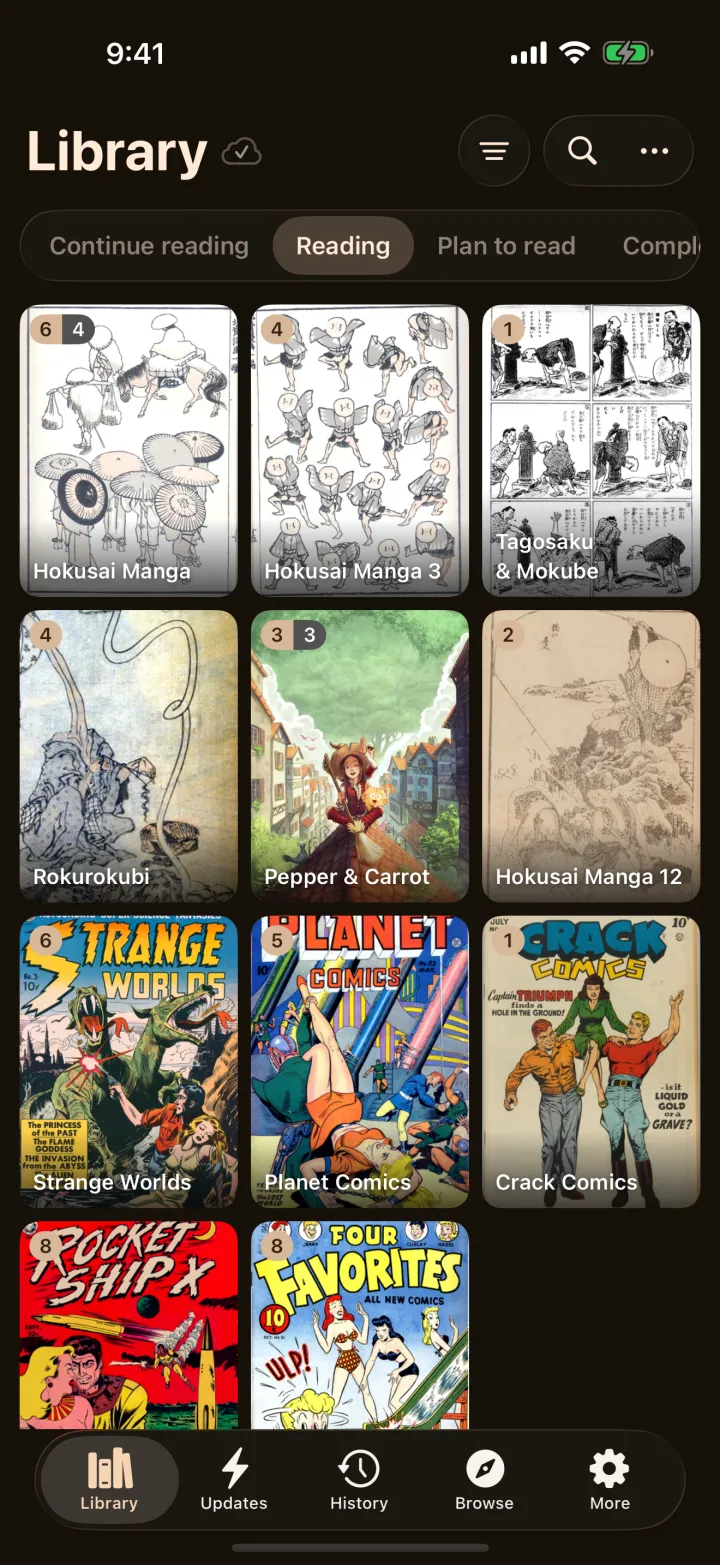
Bokumi has five tabs along the bottom.
| Tab | What it is |
|---|---|
| Library | Your shelf. Switch between Continue reading, Reading, Plan to read and Completed, or edit the tabs to suit you. |
| Updates | New chapters for the series in your library. |
| History | Everything you have read, with the place you stopped. |
| Browse | Your local files. Import books and add them to your library here. |
| More | Appearance, reader settings, sync, backups, tracking, and Bokumi Plus. |
Add your first book#
Open Browse → Local files, tap Import and pick a CBZ, ZIP or EPUB file, or a folder of images, from the Files app. It lands on your shelf straight away. Bring your own books covers folders, a server at home and libraries from other apps.
Open your first chapter#
- Open a series from your library. Its page shows a poster, your progress and a Continue button.
- Tap Continue, or pick any chapter from the list.
- Tap the page once to show the controls. Swipe, or tap the edges, to turn pages. Double-tap to zoom.
Tapping a title under Continue reading in the library opens the book straight away, on the page you left.
Pick the way you read#
Open the reader's settings to change the reading mode: Right to left for manga, Left to right for comics, Vertical, Webtoon or Continuous. Bokumi remembers the choice per series. Read more in the reader.
Make it yours#
Go to More → Appearance to pick a theme, switch between light and dark, and choose an app icon. The Bokumi and Stone themes and the default icon are free; the rest come with Bokumi Plus. See themes, icons and widgets.
Keep your place everywhere#
With Bokumi Plus, your library, progress and settings follow you across your devices through your own private iCloud. There is nothing to sign in to. See iCloud sync.