
Guide
Your own sources
Connect Bokumi to a server, a service or a catalog you are allowed to read from, with an extension you install from a file, a repository you trust, or write yourself.
An extension teaches Bokumi to read from one place: a media server at home, a publisher's own reader, a library you belong to, a catalog of public-domain books, or a little site you run yourself. Each place it reads from shows up as a source under Browse.
Bokumi ships with no extensions, no repositories and no content. Nothing is preinstalled and nothing is suggested. You decide what to add.
Install an extension from a file#
The simplest way, and the right one for an extension you wrote or were given by the people who run a service.
- Save the extension file (a
.jsfile) to Files, or AirDrop it to your iPhone or iPad. - In Browse, tap ⋯ and choose Install from file, then pick it. Opening the file in Bokumi from Files or the share sheet works too.
- Bokumi shows what the extension is and what it is allowed to reach, marked as an unverified local file. Read it, then confirm.
Add a repository#
A repository is a list of extensions published at a web address, so they can be installed and kept up to date in one place. Servers and services often publish their own.
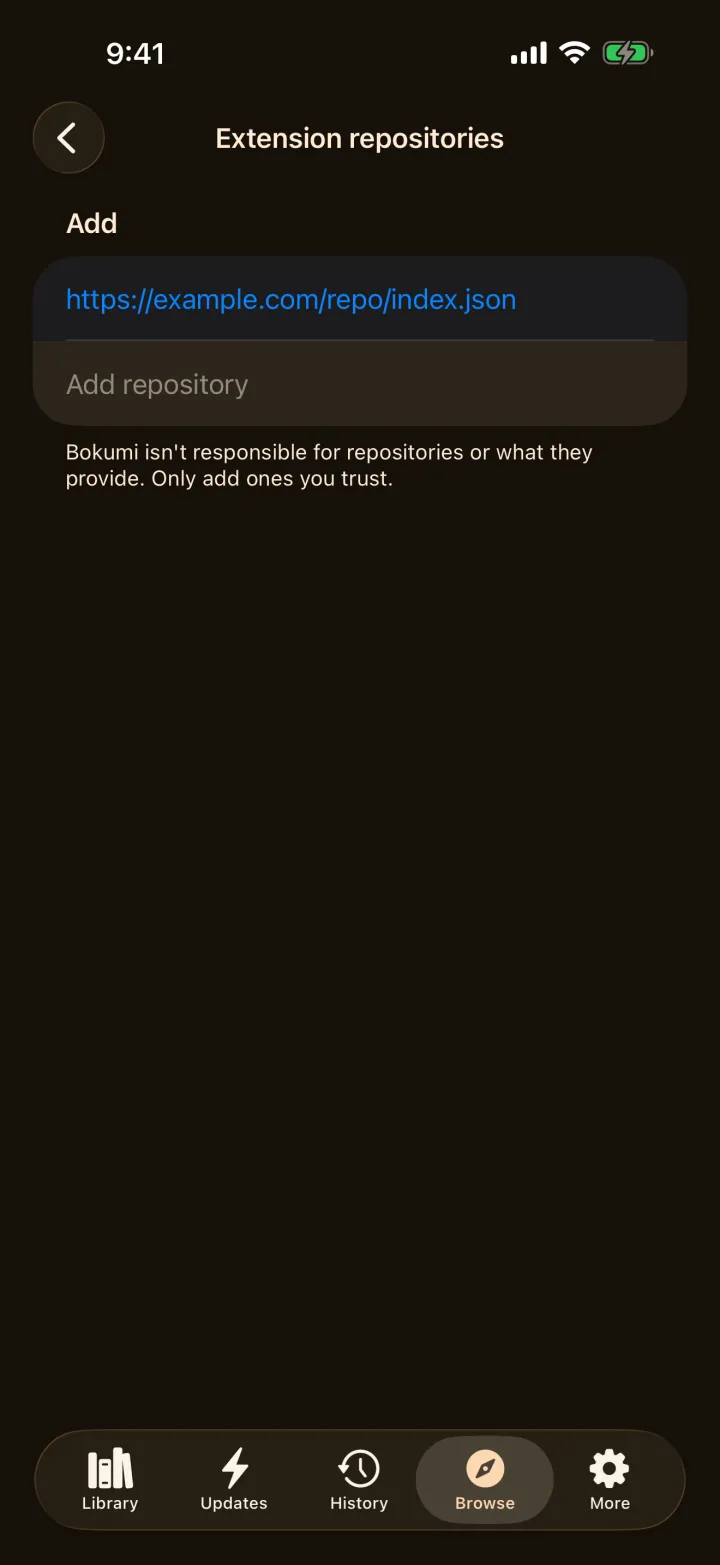
- In Browse, tap ⋯ and choose Extension repositories.
- Paste the repository's link and tap Add repository. A link to a repository on GitHub works as it is.
https://example.com/repo/index.json- Its extensions appear in the Extensions list. Only the languages you read are shown; the ⋯ menu can show every language.
- Tap Get and confirm. Bokumi downloads the file, checks it against the repository's fingerprint, and installs it only after you say yes.
A server at home#
If your collection lives on a computer or NAS at home, running a media server you set up for your own books, the extension for that server lets Bokumi read straight from it. Install it, open its settings, enter your server's address and your login, and tap Test connection. Your collection then appears under Browse, and you add series to your library like any other.
If the server keeps reading progress, it also appears under Enhanced tracking in More → Tracking, which is part of Bokumi Plus. Leave it on and the chapters you finish in Bokumi are marked on the server too, while opening a series picks up what you read elsewhere.
What an extension can and can't do#
Every extension runs in its own sandbox.
- Before it's installed you see exactly which web addresses it may contact. It can't reach anything else, and every redirect is checked again.
- If it uses an unencrypted connection, say to a server on your home network, Bokumi tells you before you install it.
- It never sees your iCloud, your sync data, your tracker logins or your other extensions. Each extension has its own cookies.
- Passwords and keys you enter in its settings are kept in the iOS Keychain, and are never put in backups or sync.
- Sources marked 18+ stay hidden unless you choose to show them.
Settings, updates and removal#
- Settings: open an extension under Extensions to set a server address or log in, see its log, or tap Test connection when it offers one.
- Updates: they appear at the top of the Extensions list. Update all does them together.
- Reinstall: if a source stops loading, choose Reinstall from the extension's menu, or Reinstall extensions from the ⋯ menu in Browse.
- Remove: open the extension and choose Remove. Its settings and saved logins go with it, and your library stays as it is.
Write your own#
An extension is a single JavaScript file: a short description at the top, then a few functions that answer Bokumi's questions (what is popular, what is in this series, which images make up this chapter). If you have a collection on a little web server of your own, an afternoon is enough.
/*! bokumi-extension
{
  "id": "com.example.myshelf",
  "name": "My Shelf",
  "version": "1.0.0",
  "versionCode": 1,
  "apiVersion": 1,
  "lang": "en",
  "capabilities": [
    "popular", "details",
    "chapters", "pages", "settings"
  ],
  "permissions": {
    "network": [],
    "userHostSetting": "server"
  },
  "settings": [{
    "key": "server",
    "type": "text",
    "title": "Server address",
    "default": "https://example.com"
  }]
}
*/
(function () {
  var settings = Bokumi.settings;
  var http = Bokumi.http;

  function api(path) {
    var base = settings.get("server");
    return http.getJson(base + path);
  }

  Bokumi.register({
    getPopular: function (page) {
      return api("/books?page=" + page);
    },
    getMangaDetails: function (url) {
      return api(url);
    },
    getChapters: function (url) {
      return api(url + "/chapters");
    },
    getPages: function (url) {
      return api(url + "/pages");
    }
  });
})();
A few things to know:
- The description block is read before any code runs. It names the extension, says what it can do under
capabilities, and lists every host it may contact underpermissions.network.userHostSettinglets someone point it at their own server's address. - Write it as plain, older JavaScript (
varandfunction, no modules orasync). Every call is synchronous, and network requests go throughBokumi.http. - Each function returns plain objects: a page of series is
{ items: [{ url, title, thumbnailUrl }], hasNextPage }, chapters are{ url, name, number }with the newest first, and pages are{ index, imageUrl }. - Try it on your own device with Install from file and watch its log under Extensions.
To share it, put the .js file and an index.json that lists it, with its size and SHA-256 fingerprint, on any HTTPS address, and give people the link to that index.json. Please only publish extensions for places you have the right to read from and to share.