Guide
Themes, icons & widgets
42 themes in six collections, eleven app icons, tinted text, pure black, and four Home Screen widgets.
Themes#
Bokumi has 42 themes in six collections. Each collection tints the app differently:
| Collection | Look |
|---|---|
| Free | Bokumi and Stone, the two free themes. |
| Classic | One bright color for the accent and the surfaces. |
| Soft | Dusty colors on charcoal. |
| Duotone | An accent over surfaces of a different hue. |
| Night | Deep backgrounds with a bright accent. |
| Ink & Paper | Near black and white, or warm paper. |
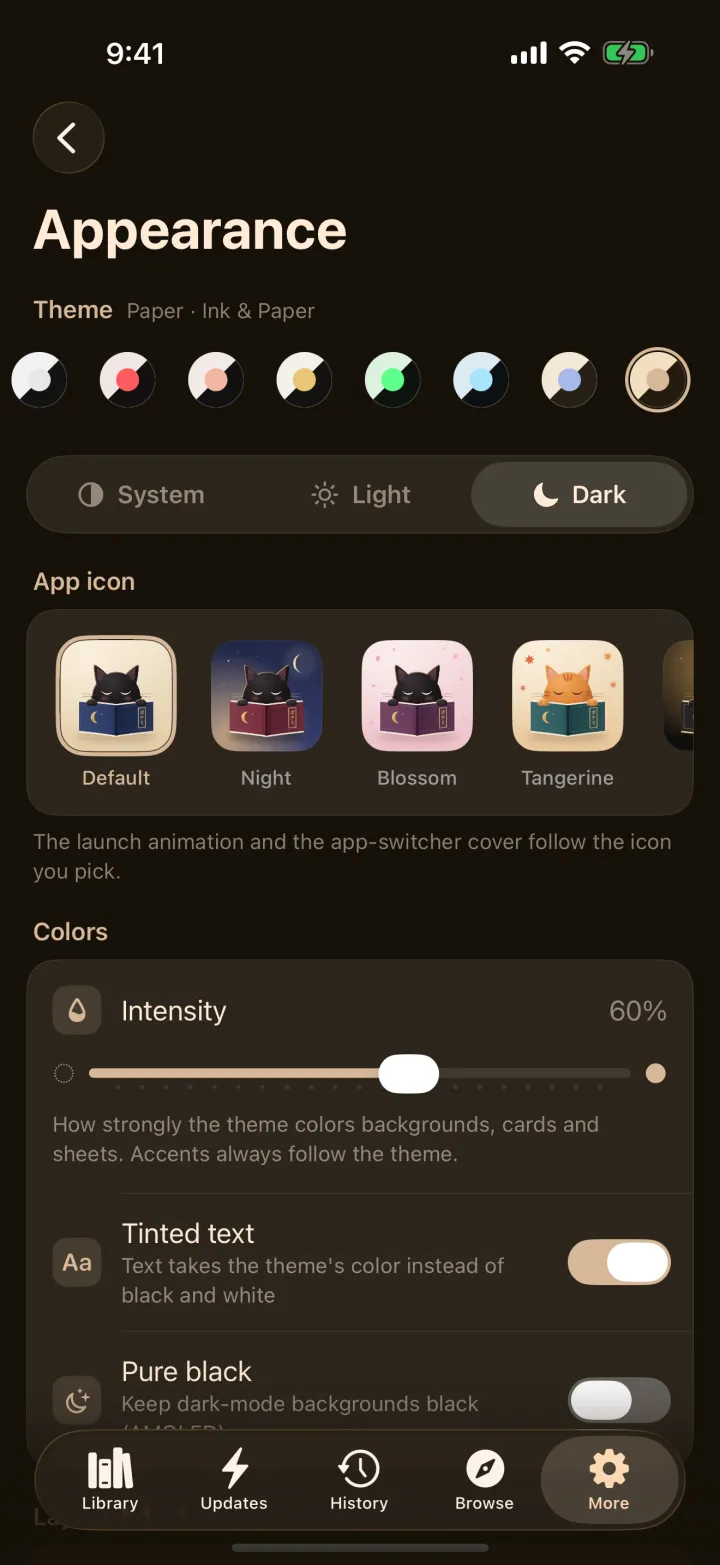
Open More → Appearance and tap a dot. The theme applies to the whole app and to the reader. Choose System, Light or Dark for the appearance. With Plus you can also turn on tinted text, pure black for OLED screens, and change theme intensity.
App icons#
Pick an icon under Appearance → App icon. The reading cat is the default and is free. Ten more come with Plus: four more cat colorways (Yoru, Sakura, Mikan and Kin) and six designs (Tsuki, Hanko, Sotei, Fukidashi, Marumado and Enso). All eleven support iOS 26's Liquid Glass, Dark and Tinted looks, and the launch animation plays in the icon's own colors.
Widgets#
Bokumi has four widgets, all part of Plus, and they follow your theme:
- Continue Reading: the series you are in the middle of.
- New Chapters: new chapters for the series in your library.
- Reading Streak: how many days in a row you have read.
- Shelf: covers from your library, right on the Home Screen.
To add one, touch and hold an empty spot on the Home Screen, tap +, choose Bokumi, and pick a widget.
Language, haptics and tabs#
- Language: the app comes in 13 languages: English, Español, Português (Brasil), Français, Deutsch, Русский, Türkçe, Bahasa Indonesia, Tiếng Việt, 简体中文, 繁體中文, 日本語 and 한국어. Change it in More → General → App language and the app switches at once.
- Haptics: tune or turn off the taps and ticks in More → Haptics.
- Tabs: reorder or hide tabs, and choose the tab the app opens on, in More → General.